1.
How can I configure the DirectX/DirectMusic libraries and headers to use
them in my project?
2. How can I add the
DirectMidi files to my current Visual Studio project?
3.
How can I link my project correctly?
4. How can I compile the project with
Borland?
5. What is the most suitable Visual Studio
configuration to start an application?
6. What is the number of channel groups? Can I apply them to my project?
7. What is the sequence for a correct CSampleInstrument download?
1. How can I configure the DirectX/DirectMusic libraries and headers to use them in my project?
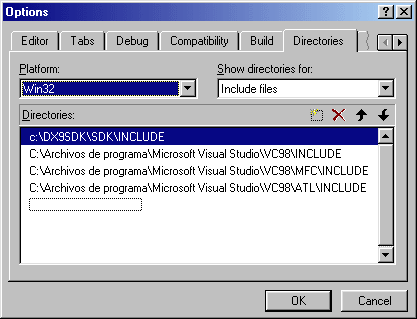
It's important that you compile and link with the suitable DirectX/DirectMusic libraries. At present the DirectMidi library can be compiled with the COM versions of DirectX 8.0, 8.1 and 9.0 since the interface indentifiers are still the same. Before starting to write code you should indicate to your Visual Studio what external libraries and header directories are required. In this case you should add to your Visual Studio the input headers contained in the DirectX directory "/include". Therefore, you must go to the menu Tools -> Options, select the Directories tab and add the include directory in the first entry on the list as shown in the image below:
You have to proceed in a similar way to add the library modules to your project but this time select the Library files in the Show directories for list box.
Visual C++.NET users
If you are a C++.NET developer you must go to the upper menu and select Tools -> Options and open the folder Projects, then select the VC++ directories item and finally proceed to include the library and include directories in the same way as explained in the Visual C++ 6 case.

2. How can I add the DirectMidi files to my current Visual Studio project?
Well, this is one
of the most common questions appeared when starting developing applications with DirectMidi.
To solve this issue you must first have a folder inside your
project named DirectMidi. This folder must contain the source code files of the
library. There must be a total of 27 files (including .h and .cpp) plus the
files included in the dsutils directory. The pourpose
of each one is explained in the table below:
|
Filename |
Description |
| CDirectMidi.h | The header file including both CAudioPart.h and CMidiPart.h |
| CDirectBase.h | Base header file with the common definitions |
| CAudioPart.h | Audio part header file with the class definitions |
| CMidiPart.h | Midi part header file with the class definitions |
| CDirectMusic.cpp | Main code for the DirectMusic COM object instantiation/initialization |
| CMasterClock.cpp | Source code for handling directmusic system clocks |
| CMidiport.cpp | Common source code for all C___port inherited classes |
| CInputport.cpp | The source code file containing the code to handle input MIDI ports |
| COutputport.cpp | Defines the implementation of the output MIDI ports |
| CDLSLoader.cpp | Implements the code to handle DLS instrument files |
| CCollection.cpp | Source code defining the containers for the instruments |
| CSampleInstrument.cpp | This file encapsulates the code that handles a single sampled instrument |
| CInstrument.cpp | Source code for DLS 1.0/2.0 instrument handling |
| CPerformance.cpp | Common source code implementing performance base class |
| CPortPerformance.cpp | Implmentation of the port performance derived class |
| CAPathPerformance.cpp | Implementation of the audiopath performance derived class |
| CAudioPath.cpp | Source code for the audiopaths implementation |
| CSegment.cpp | Implements the segment class |
| C3DSegment.cpp | Implementation of the C3DSegment derived class |
| C3DBuffer.cpp | Source code for the implementation of the 3D buffer |
| C3DListener.cpp | Implements the code for the 3D listener buffer |
| CDMusicException.cpp | The exception handling module and error definition switch |
| Dmhelp.cpp | Help conversion functions and assertions |
| dsutil\dsutil.h | DirectSound utility routines header files (must be included) |
| dsutil\dsutil.cpp | DirectSound utility routines source code (must be included) |
| dsutil\dxutil.h | DirectX utility routines header file |
| dsutil\dxutil.cpp | DirectX utility routines source code |
Once you have all the files in
your directory you can proceed to add them into your project by going to Project
-> Add to project -> Files in your Visual Studio. After including them
in your project you must use the #include
"CDirectMidi.h" directive to import the files where needed. Finally
you must use the directive using
namespace directmidi to
access the grouped set of objects, functions and constants.
Visual C++.NET users
For Visual C++.NET users, they must click on the Solution Explorer tab and then click right over the main application item and deploy the context menu. Next, select the Add -> Add existing item and finally include the files listed above.
3. How can I link my project correctly?
This is a very common question arising when
you proceed to link your object (.obj) and library (.lib) modules.
The main output errors obtained when linking are usually the unresolved
externals. These errors are due to the missing of the main DirectX/DirectMusic
static libraries. These libraries are dxguid.lib, winmm.lib,
dsound.lib and dxerr9.lib. Therefore, you have to
tell the linker that you are using such libraries. There are
two different ways to include it in the linking process. The first one is to
use the directive #pragma comment (lib,"dxguid.lib")
and the other one is to set the input library in the Project ->
Settings->Link tab into the object/library modules input box of your
Visual Studio IDE.
Visual C++.NET users
You must go to the main menu and click on the Project -> Properties item and then open the Linker folder. After opening this folder, select the Input section and finally add to the Additional Dependencies input box the libraries listed above.
4. How can I compile the project with Borland?
There are a few users interested in compiling their project with the Borland suite. Currently the DirectMidi can be used with Visual Studio 6-7 and Borland 5.0 or higher. I couldn't get the Borland development suite in order to test it but I could use the free command line compiler at Borland site. A few changes are required to compile the project under Borland C++:
Then compile the project with this syntax:
bcc32 -I..\..\..\SDKS\dx9sdk\sdk(c++)\include\ -I..\include\ -c -WR -WC -5..\sample\*.cpp > comperrs.txt
where -I indicates the input header directories, -c compile to .OBJ, no link, -WR target uses the dynamic RTL, -WC target is a console application and -5 compile for pentium instructions.
*Notes:
and link with the following syntax:
ilink32
-L..\lib\ -j..\lib\-C -Tpe -c CCollection CDirectMusic
CDLSLoader CInputPort CInstrument
COutputPort c0x32 example,example,,dxguid import32 cw32i > lnkerrs.txt
where -L indicates the library
directory, -j specifies object search paths, -C erases all linker-state files before each link,
-Tpe targets a Windows .EXE file and -c treats case as significant in symbols
*Notes:
5. What is the most suitable Visual Studio configuration to start an application?
This question is useful to ensure you are working with a safe compiler configuration that allows you to execute the application preventing critical or severe operating system failures. Thus, you must always work with the debug run-time libraries for DirectX instead of the retail one before installing the package. Besides, it's important that you compile with the Debug configuration for a Visual Studio project. To do this, you must go to the Set active configuration menu item and select the debug option. With all this, you will have then a safe compiler configuration for your current project that will avoid serious system damage.
Visual C++.NET users
For Visual C++.NET developers, they must go to the main menu and click on Project -> Properties and then select Debug in the configuration list box.
6. What is the number of channel groups? Can I apply them to my project?
The number of channel groups is a set of the
standard MIDI global channels. The global channels are a total of 16 MIDI
channels destined to transmit MIDI type information in an independent way. With
the appearing of software synthesizers the manufacturers increased the number
of possible samples that could be played at the same time, Thus increasing the number of MIDI channel that could be performed
simultaneously.
DirectMidi supports channel groups from the 2.1b version. You can find more
information about how to use the channel groups in the documentation
section.
7. What is the sequence for a correct CSampleInstrument download?
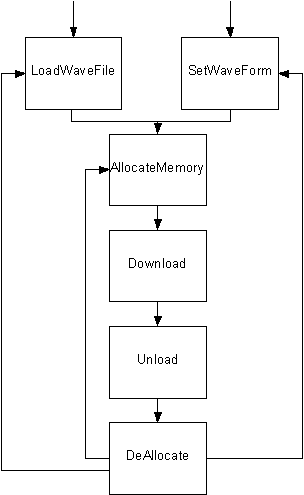
The next state diagram shows the correct sequence: